How to sign using A1 PDF
A1 PDF has a easy interface to allow you to add your signatures with ease. Please follow this simple guide to add signature to your own PDF -
- From recents / your device select a PDF file that you wish to sign
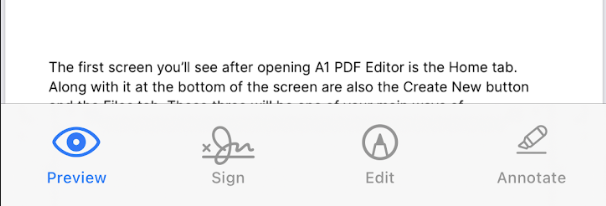
- Once the file opened in Preview screen, press sign at the bottom, you should be redirected to edit screen
-
On Edit screen, at the bottom menu, scroll right to see more options

-
Select the PEN icon as shown below, once pressed a popup will show up


- In this popup, press + button to create a new signature
-
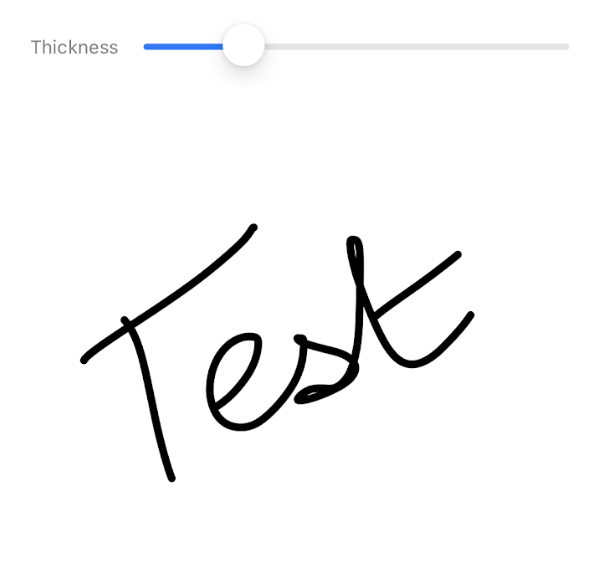
This is where you should be able to see another popup which has a input box where you can enter your sign after selecting the colour, as shown in the screenshot below. Once done, press Save on the top right
-
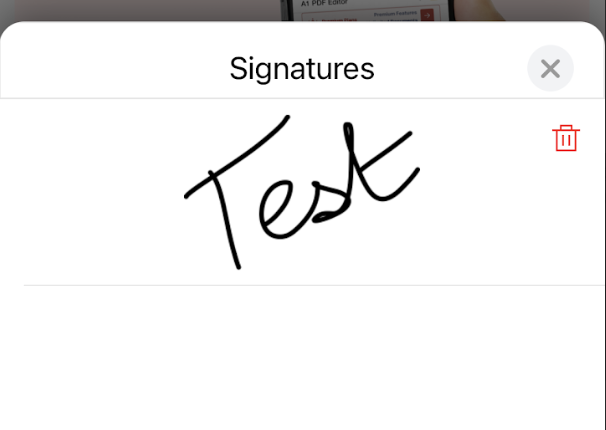
The signature will be created and saved for future use as well as shown below. Now tap on this signature and you should be able to place the signature wherever you want on the document
-
Place the signature on the document